Categories
Games News

How To Fix Clash Royale Crashing On Android Smartphones

There are many players out there who asked about a way to fix the Clash Royale game when it crashes on Android devices. We are here to give you a way out. Before you start anything, you need to make sure that you are playing the official version of the game Clash Royale, the very one available on the Google Play Store.

Keep in mind that, if, however, you have problems downloading it, you can always get the Clash Royale APK. Just make sure you get it from a secured source. Also, make sure that your device has at least 0.5 GB worth of RAM and that it runs on Android 4.0.3 or newer – it’s crucial for the game to work smoothly.

How to fix Clash Royale crashing on Android devices

Restart your smartphone

You can start by restarting your device. In order to do that, you need to hold the Power button, then choose to Restart. If you don’t have a Restart button, then turn it off, then on.

Delete and then reinstall Clash Royale game

Sometimes, uninstalling and reinstalling an app might sort out a series of issues. The same applies to Clash Royale.

Check internal storage

Also, make sure that your device is not full. In order to see that, go to Settings, to Storage and see if there are at least 100MB free for the game.

Log out of Google and Facebook

You could also try to log out of Google ID and Facebook, and then try running Clash Royale once again and reconnect to your accounts. Also, the date and the time are important, make sure they are correct.

Switch to another internet connection

Change the internet connection, perhaps one with better reception. You could also visit the 9339 port checker. If you are not able to view it, that means you cannot play the game with the current connection that you have, and you need to change it.

If you try all of the above, and nothing works to fix Clash Royale crashing on Android, then the only solution is to contact Supercell for additional support.

Categories
Games News

New Augmented Reality Minecraft Earth will Require an Xbox Live Account

Minecraft is a sandbox video game that allows players to use at maximum their creativity in order to build in a 3D procedurally generated world.

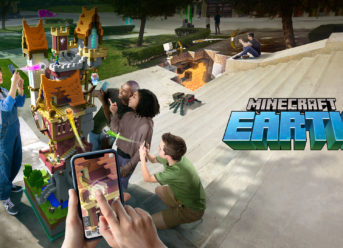
Following the success of Pokémon Go’s augmented reality (AR) gameplay, Minecraft is also making a leap into it with Minecraft Earth (ME).

The game will be playable on iOS and Android with a beta release in summer, this year. The game has a multiplayer version available through game-to-game multiplayer LAN play. The players can run their own servers or connect to another player’s game via Xbox live. Xbox live is the online gaming service of Microsoft, unlocking the full potential from Windows 10, Xbox One and Xbox Mobile apps. For Minecraft Earth will provide the foundation and the support of online play.

The company did not provide much information on ME, however it looks like an Xbox Live account will be required. If you are already an Xbox Live user you can use directly your credentials. If you do not have an Xbox Live account you can just make one for free. It is true that Xbox One users have paid Xbox Live Gold subscription however to play Minecraft Earth you just need a free Xbox Live account.

Once you create an Xbox Live account, your username and profile along with your gaming progress will be saved. Users who are already Minecraft players and wish to transfer skins and achievements can do so using their Xbox Live credentials.

In an effort to ensure young gamers safety, Minecraft Earth will use Xbox Live privacy and safety tools giving parents the option to monitor and tailor their kids gaming experience.

For fans who would like to try as soon as possible ME, the beta applications will soon be ready. They will need to make an Xbox Live account for the beta sign-up as well.

Categories
Games News Tech

30 Tips & Tricks to Becoming a Pro on Candy Crush Saga

Finding it difficult to become a pro on Candy Crush? This article is for you! Here, we’ll be showing you thirty tips & tricks to speed up your progress, towards becoming a master of the game.

Tips & Tricks for Candy Crush Saga

#1 Start the game from the base of the board.

#2 Accept gifts and extra lives only when you need them.

#3 Weigh up suggested moves before applying them; don’t always use them.

#4 If/when required, destroy “time bombs”, “chocolate”, “licorice” and/or “meringue” as soon as you can.

#5 Bypass time countdown to gain new lives & levels; reset time/date each time you exhaust your lives. Check out more here.

#6 Always disable “Boosts” for the next level.

#7 Hit the “Quit” icon to track progress, but ensure you don’t click “End Game”.

#8 Reshuffle candies; press the exit icon at the start of a target level.

#9 Save “Boosters” for more difficult levels.

#10 Take note of all the striped candies you create (horizontal and/or vertical).

#11 The “pink bow” icon indicates that you’ve been gifted with “3+ MOVES”.

#12 To get higher score, finish a level with extra moves left.

#13 Take note of the game patterns to pinpoint killer moves.

#14 Try and obtain as many “+5 candies” as you can; to add more time in a timed level.

#15 Be mindful of the “chocolates” you’ve eaten/destroyed.

#16 On a jelly level, clear the jellies at the edge/bottom of the board before going for the inner ones.

#17 Apply the “Coconut wheel” booster.

#18 Apply “Combo candies” to clear the board.

#19 Carefully move an “ingredient” to the center, when you come across one.

#20 Use “striped candies” for difficult levels.

#21 Clear “blockers” before candies.

#22 Take note of all special candies – “striped/wrapped/color bomb”.

#23 Use “wrapped candies” to garner points.

#24 Plan how “ingredients” pop out.

#25 Don’t fret when you see a time bomb; it’s all part of the game.

#26 Be mindful of your objective(s) at each level.

#27 Open multiple tabs on your browser; to get multiple lives.

#28 Plan each move.

#29 Know what’s at stake before destroying candies/blockers.

#30 Play the “fish candies” last.

Note: These tips are in no particular order. So, feel free to apply them as you see fit.

Categories
Tech

How to Fix Opera Mini Not Loading Images on Google PageSpeed Service

Is Opera Mini not loading images on Google PageSpeed service? This guide will show you how to resolve this problem with easy steps.

PageSpeed Service was designed by Google Inc. to check and improve the page-loading speed of websites and web pages. However, some users have reported that certain browsers do not load images on the service, and one of the most notorious browsers, in this case, is Opera Mini.

Therefore, this tutorial is specially tailored, to help you fix this error on Opera Mini.

Fix: Opera Mini Not Loading Images on Google PageSpeed Service

Fix 1: Reconfigure Rewriter

If your Opera Mini browser fails to load images on Google PageSpeed service, the problem is probably associated with the configuration of the service’s “rewriter”.

To fix this issue, simply follow the steps outlined below:

  • Sign into your PageSpeed account and navigate to the service’s dashboard.
  • On the dashboard, Select Configure Rewriter.
  • Click on Optimize Images.
  • Find and enable the Lazyload Images
  • Set the ‘Lazyload images’ option to On page load
  • Click on the Apply to Live option to save the new settings.
  • Wait for some minutes.
  • And you are all set!

Once this is done, the images should now load fine.

For better performance on the PageSpeed service, you can modify the configuration of the rewriter settings, as described in the next section.

Fix 2: Enhance Performance via Rewriter Configuration

This fix would make your pages and images load faster. The procedures are as follow:

  1. Enable the “Optimize HTML” setting

This improves the loading speed of web pages. By optimizing the HTML settings, the size of the pages are significantly reduced. Consequently, the pages load faster.

To do this:

  • Go to PageSpeed Service.
  • Go to List of rewriter settings.
  • Locate and click on Optimize HTML to expand underlying settings.
  • Enable all the settings (check all the boxes).
  • Now, Apply changes.
  1. Enable the “Serve Resources through Google” setting

To do this:

  • Go to PageSpeed Service > List of rewriter settings.
  • Find and enable the Serve Resources through Google
  • Now, save the setting.

Either or both of the workarounds above would enhance/improve the page-loading speed of your site(s), and images would also come up fine.

Note: PageSpeed Service has since been retired by Google Inc.

Hope you find this helpful? Drop us a comment below.

Categories
Markets News Tech

Opera Mini Review

You are probably familiar with the Opera Mini browser, but how much do you know about its functionality? Follow us, as we bring you a brief review of the pint-sized browser.

What is Opera Mini?

Opera Mini is the lightweight version of Opera. It is a free browser, designed to support virtually all known mobile operating systems; hosting flexible support that stretches as far back as Android 2.3. In fact, there is a classic version for old Android phones (< Android 2.3).

The browser is best suited for quick – light – browsing, as it’s characterized by fast loading speed and compressed data usage. However, with respect to its lightweight status, it is not suitable for loading/accessing heavy duty – sophisticated – sites. In fact, some sites are blankly inaccessible via Opera Mini.

The browser can be downloaded (for free) from Opera’s official website or from Play Store/App Store. And there is designated support for even the oldest versions of Android and iOS.

Round up; Opera Mini is suitable for normal everyday browsing, providing you with jet-like browsing speed, and saving you huge amount of data in the process.

Features & Benefits of Opera Mini

Fast Browsing Speed

One of the key features of Opera Mini is its relatively fast browsing speed. It hosts a lightweight engine, which shrinks web contents before they get to your browser. Hence, the web pages are loaded much more faster than what is obtainable on  most browsers.

Ad Blocker

Opera Mini hosts a built-in ad blocker, which blocks ads from the source. This enables you to browse seamlessly – without distraction – on the web.

Facebook Notifications

The latest update of Opera Mini hosts a notification bar for Facebook. This typically shows notification pop ups each time you receive a message, tag or notification on Facebook. With this, you are able to stay in touch with happenings on the virtual world (on Facebook).

Data Management

Spending too much money on data? Opera Mini offers you a way out! The browser is equipped with a data saving function, which ensures that the minimum amount of data is being expended on the web. Also, you are able to monitor how your data is being used, and which site(s) is consuming more (or less).

Other Features & Benefits

  • Online Synching
  • Smart Night Mode
  • Simple UI
  • And more.

For more information concerning Opera Mini and how to download it, you can check out the Opera Mini official website.

Exit mobile version