
Categories
Markets News Tech

How to speed up your iOS device

Is your iPhone is no longer as fast as it used to be? Let’s show you how to speed it up.

With more loads, apps, and media on your device, it’s bound to slow down to a frustratingly snail crawl.

Fortunately for you, you don’t have to splash your money on a new IOS device because you can easily speed up your IOS device by making little changes.

Speed up your iOS device with these effective tips

Follow our tips below on how to speed up your IOS device and in a few minutes, you’ll be surprised at the performance of your device.

Turn Off iCloud Backup and Sync

As a standard, all IOS users will need to login to their iCloud account on an IOS device. iCloud helps with automatic backup and sync of media, files, and passwords.

While this process is quite essential, it is also a huge resource consumer and can easily slow down your IOS device. You don’t have to back up all your files all the time. You can easily turn the feature off and then on again when you need to backup important changes. To do this:

  • Go to App Settings > tap on iCloud > Log in to iCloud > Disable Sync
  • Turn this option off for photos, calendar, contact, and iCloud backup

Uninstall Seldom Used Apps

The truth is, most of us install apps we need for just a once in a while kind of operation and then leave them lying around. If you have an app that you hardly use, you probably should uninstall it as the more apps you have on your drawer, the slower your IOS device will become. To uninstall an app:

  • Press and hold the app until an X symbol appears
  • Tap the X symbol, and the app will be uninstalled.

Clear Safari Cache

Safari stores a lot of your browsing data. These data are mainly stored on your device so safari can give you more personalized browsing experience. The price you have to pay for this is the slow loading speed.

To speed up your phone and consequently safari, you’ll need to get rid of these data from time to time. To clear stored data;

  • Navigate to Settings > Safari > Clear History and Website Data

Turn Siri Off

If you don’t use Apple’s smart voice assistant regularly, you should turn her off. Siri consumes more CPU space and power than you can imagine. To turn Siri off:

  • Navigate to Settings > General > Siri, and toggle off Siri.
  • When asked to confirm if you want to turn Siri off, click on the turn off button.

Sluggish devices are quite frustrating, follow the above tips and see how much your IOS device would pick up speed again.

Hope you find this helpful?
Categories
Tech

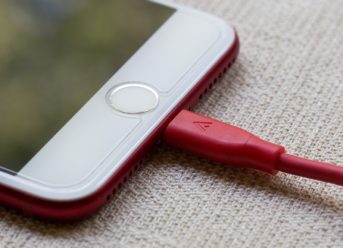
How To Clean iPhone Charging Port

No matter how reliable your charging port is, it still gets exposed to dirt, dust and junks. This makes it to be clogged and faulty. If your iPhone won’t charge, you can safely clean your charging port. Who knows? That might get it to start working perfectly fine. There are methods in cleaning your charging port, let’s discuss them:

How To Clean An iPhone Charging Port

Solution 1: Use Compressed Air

Do you already have a can of hot compressed air? Hold it closely to your charging port’s mouth, but not too close, don’t stick it inside. Press the can of compressed air gently and allow the air to pass into the charging port.

In the process of doing this, ensure you do not pass air with your mouth. It will only worsen the situation. After carefully passing compressed air into the port, wait for some seconds and plug your cable. If you are able to remove dust and dirt in the charging port, your device will work well.

Solution 2: Use a Toothpick

Flexible toothpicks can be used to clean your iPhone charging port. With your iPhone turned off, pick a toothpick, look for a bright environment, and then slightly use your toothpick to waggle around the charging port. Do not apply any pressure at first. If you find out the dirt won’t come out, apply the lightest pressure. Stay away from the sides of the charging port to keep the anchors safe. If eventually, you are able to pick out the dirt. Switch back to using compressed air. Test your cable and see that your iPhone is charging.

Solution 3: Contact Apple Support

Most people skip processes just to give their iPhone to a professional. It is advisable to visit the nearest Apple Store. In addition, experienced Apple technician will know how to clean the charging port with his/her available tools. You can also look for a repair shop around if you can’t locate any Apple store around. Moreover, Apple Store will clean your charging port without any expense.

Hope you find this post helpful?

Categories
News Tech

How to speed up your Mac PC

Wondering why your Mac is running so slow? In this post, we show you effective methods applicable in speeding up your Mac PC.

Speed up your Mac PC using these methods

Follow these simple tips to speed up your Mac in a few minutes.

  • Stop Background Processes

Most times, when we close an app, it does not stop using system resources. Instead, most of these apps began running in the background, consuming vital resources that should have been used for the current processes.

As such, when you find your Mac slowing to a crawl, your first option will be to check and stop some of these apps running behind the scene. Mac provides a way to go about this.

  • Go to your activity folder and open the Utility folder
  • Under the utility folder, click on Activity Monitor
  • This will bring up all the processes currently running on your Mac. Click on the apps you’re currently not using and then on the X symbol to close the operation.
  • Avoid closing processes that you don’t understand its relationship to an app you installed as such processes may be systemic, and closure can easily slow down or even freeze your Mac.
  • Limit Startup Processes

If your Mac takes time to boot, you may want to limit startup processes. By limiting startup processes, you help quicken the booting time. To do this;

  • Go to System Preferences
  • Click on Users & Groups
  • Click on your username and login
  • Select a program you don’t immediately need after startup and then click on the ‘-‘
  • Clear Browser Extension and Themes

Browsers are apps you probably are using regularly. As such, you may want to ensure they load as fast as possible. One way to do this is to delete extension clutters and those fancy themes as they tend to slow the loading time.

  • Safari

Click on the main menu and go to manage extension

  • Firefox

Click tools and then add-ons or right click on the extension from the bars and click on remove extension.

  • Chrome

Right click on the extension and click on remove.

  • Uninstall Software You Don’t Use

Software is always running whether you make use of them or not, especially when there’s an internet connection. They regularly check for updates. As such you may want to uninstall software you don’t use regularly. Don’t just drag and drop them in the trash, instead uninstall them properly:

  • Open the finder application
  • Click on application
  • Double click the app
  • Click on the uninstaller
  • Other ways of speeding up your Mac includes:

  • Adding More RAM
  • Cleaning up Your Hard Disk Drive and
  • Updating your OS.

Most devices will slow down over time as a result of increased load. So to keep your mac fast, you’ll need to clear up as regularly as possible.

Categories
Games News Tech

Clash Royale Connection Error [Quick Fix]

Finding it difficult to connect or load Clash Royale? This tutorial will show you a workaround.

Clash Royale is an exciting mobile game, with millions of players across the globe. However, some players have complained of various kinds of errors, one of which is the connection error, which is typically encountered during startup or even deep into the game.

If you’re encountering this error, you can try the fixes in this guide.

Fix: Clash Royale Connection Error

Although this connection error usually occurs due to internet/Wi-Fi instability, some other factors like bug attacks or app glitch could be responsible.

Nevertheless, some of the fixes below should fix the connection error.

Fix 1: Troubleshoot Wi-Fi

As the basic step, simply close the game and turn off your Wi-Fi or mobile internet connection. After a few seconds, turn it back on and relaunch the game.

You can also enable Airplane mode after turning off internet/Wi-Fi. After a few seconds, disable it and connect back to the internet.

This should fix the problem. If it persists, try the next fix.

Fix 2: Turn off Battery Saver

This troubleshooting method is usually overlooked, yet it’s been proven to fix errors such as this. Therefore, if you eencounter the connection error on Clash Royale, check if battery saver (power saving mode) is enabled, and disable it (if enabled).

If the error persists, try the next fix.

Fix 3: Restart Phone

Well, you just have try this method. By restarting your phone, connection glitches are fixed and your internet is refresh. Also, the game’s temporary files are cleared. This could be the simple fix to the error.

Fix 4: Clear Cache

If you’re sure of the stability of your internet connection, and you still encounter this error, the problem is probably from the game itself. Hence, try clearing its cache.

To do this:

  • Go to “Settings” > “Apps” > “Clash Royale” > “Storage”
  • Select “Clear cache”
  • Select “Clear data”.

If the problem persists, you can update or simply reinstall the game, and see if the new update works fine.

Closing Note

It’s been observed that this connection error (among other errors) occur primarily due to the instability of Clash Royale’s servers. And this is why Supercell (the game’s developer) encourages players to connect to the game via a super strong Wi-Fi or 4G mobile network.

Hope you find this helpful?

Categories
Games News Tech

How to Use Spells in Clash Royale

This tutorial will be showing you some tips on how to use spells in Clash Royale.

As a Clash Royale gamer, you’re probably familiar with the attack and defense patterns of the game. However, what many don’t know is how to use spells to hasten victory.

So, if you are a newbie (or even a pro) on Clash Royale, this guide will show you how to use spells to improve your odds.

How to Use Spells in Clash Royale

  • Lightning Card

This is one of the most potent spells. It has the capacity to destroy up to three enemy troops and buildings. When used appropriately, it can paralyze the enemy’s defenses and hasten your victory.

Lightning costs 6 elixirs; so, a spell of such value should only be used when absolutely necessary.

  • Freeze

Freeze is one of the most important cards in Clash Royale. However, it’s best deployed alongside an attack card like Hog Rider. The idea is for Freeze to clump up enemy troops, allowing the attack card to neutralize them easily.

To prevent a reverse, ensure your troops are stretched and positioned away from your tower.

  • Rocket

This is similar to Lightning, and it also costs 6 elixirs. However, compared to Lightning, it covers lesser ground, but inflicts more damage.

Rocket is highly valuable and it is best deployed where there is a gathering of enemy troopers in a confined or small area. This way, you are able to neutralize all enemy targets in the area with one Rocket.

  • Arrows

This is like the most used spell/card in Clash Royale. If properly deployed, it can inflict damage to enemy troops over a large area. This is because, it has a large radius, which makes it highly suitable for neutralizing multiple enemy targets at a time.

Interestingly, Arrows doesn’t require many elixirs; so, you get to use it a bit more often.

  • Rage

Rage is best used for attacking the enemy. Costing only 3 elixirs, it can speed up the deployment rate of your troops, and improve their attack speed by up to 35%.

  • Fireball Spell

This is another valuable card/spell. Fireball is best deployed in defense. And when used in attack, it can cause serious damage to the enemy.

  • Poison

Use Poison to slow down the enemy’s advance, before going on full assault.

Hope you find this helpful?

Exit mobile version