Categories
Games News

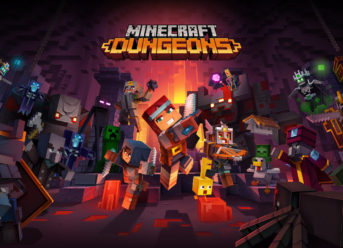
Minecraft Dungeons To Roll Out In Spring 2020

Minecraft has remained one of the most popular video games in the world, and millions of people continue to play the title each day. The cute graphics, easy-to-pick-up, and creative gameplay experience, plus a constant stream of new content updates make it a remarkable and enjoyable experience. Recently, during the E3 2019 Microsoft panel, the company announced Minecraft Dungeons.

Many gamers may have got their first taste of a pure sandbox with the help of the original JAVA version which was released for the PC a decade ago. The game has come a long way since then, and it is present across a large number of platforms, including the PS3 and PS4, Xbox 360 and Xbox One, Android, iOS and others.

Mojang worked a lot on the base game, but some players were looking forward towards a breath of fresh air. If you are one of them, you will be happy to learn that Minecraft Dungeons will be released in Spring 2020.

Minecraft Dungeons would launch next year for Windows, Xbox One, Nintendo Switch, and PS4

Minecraft Dungeons was announced a few months ago, but many details about the title remained elusive. More information was shared during the Microsoft Conference, which took place at E3. Many sources thought that the game would use a first-person perspective, but it seems that they were wrong. A short gameplay trailer showcased a top-down dungeon crawler in the vein of the iconic Diablo games.

Players will explore thematic dungeons filled with monsters and loot. The game will include an assortment of equipable items, among which we can count armor, weapons, and special items which grant a unique skill. Four-player local and online co-op capabilities were also teased, but there is no sign of a single-player mode or campaign.

The initial announcement inferred that the game would be a PC exclusive, but at the end of the video, it is mentioned that the game will be playable on Windows, Xbox One, Nintendo Switch, and PS4. It will be included in the Xbox Game Pass initiative. Microsoft and Mojang will likely share more information about Minecraft Dungeons in the future.

Categories
Games News Tech

Clash of Clans Black Screen [Quick Fix]

Experiencing the “black screen” error on Clash of Clans? This piece’s for you

Clash of Clans is one of the most popular mobile games out there. And enthusiastic gamers, who are looking to optimize their gaming experience, often seek to enjoy the game on PC. To achieve this, an emulator like “BlueStacks App Player” is required.

However, a notorious error associated with playing CoC on PC (using BlueStacks) is the system freeze/crash error, which blackens out your screen

To fix this “black screen” error, follow through this guide.

Fix: Clash of Clans Black Screen

While game crashing is not new to CoC mobile gamers, this black screen error is definitely new. The black screen is basically associated with some form of conflicts between CoC and the “interceding” BlueStacks Player (on PC).

In any case, you can try some of the workarounds below:

Method 1: Restart BlueStacks

To do this:

  • go to “Task Manager”
  • locate “BlueStacks” and right-click on it, and then select “Restart”.

Try and restart your game, and see if the “black screen” error is fixed. If it persists, try the next fix.

Method 2: Reinstall CoC in BlueStacks

To do this, you’d have to uninstall the game first, before reinstalling it.

Follow the simple steps below to run this procedure:

  • Launch BlueStacks on your PC.
  • Find and click on “Clash of Clans”
  • Locate and click on the “Uninstall” option.
  • Confirm uninstallation (as prompted) and restart PC.

Then, reinstall a fresh (updated) package of the game.

Black screen still popping up? Try the next fix.

Method 3: Reinstall BlueStacks

The “black screen” error, as emphasized earlier, could be caused by an issue(s) with the emulator (BlueStacks). Hence, you can try uninstalling/reinstalling it and see if fixes the error.

This procedure is technically a reset, which removes the entire program (including inherent apps and settings), and provides you with the latest – updated – version.

After reinstalling BlueStacks, reinstall Clash of Clans, and start enjoying your game unhindered.

Method 4: Update Drivers

Games require up-to-date graphics drivers to function properly. Hence, if/when this error occurs, it’s possible that your graphics cards are out-of-date.

To fix this, simply go to the manufacturers’ website (NVIDIA and/or AMD/ATI) and install the latest drivers.

Furthermore, try and check for updates on your PC, and install available updates, as appropriate.

Hope you find this helpful?

Categories
Games News Tech

Quick Fix: Clash of Clans Crashing After Update

This tutorial will show you how to fix Clash of Clans crashing after update.

Despite the exciting gameplay and graphical display offered by Clash of Clans (CoC), it has fallen short in the area of bug fixes, with gamers experiencing various degrees of crashes after updating the game.

This leaves one to wonder if the new updates come with more bugs, instead of bug fixes and patches. And unfortunately, this is seriously killing the fun of the game.

To fix this, you can try some of solutions herein.

Fix: Clash of Clans Crashing After Update

While the issue of game crashing is not alien to CoC gamers, the after-update crashing seems somewhat mysterious. The probable cause(s) has been attributed to incomplete/faulty installation, system glitch and/or connection error.

In any case, you can try the fixes below:

Fix 1: Restart Phone

While the actual cause of the “after-update” crashing is unknown, a number of troubleshooting techniques can be adopted to fix the error. And as a first line of defence, simply close the game and restart your phone.

This should fix the error, provided the issue is caused by a minor glitch (or the likes).

If the error persists, try the next fix.

Fix 2: Clear Cache

Most times, when CoC crashes after an update, there is usually a cache problem. To fix the crashing error in this case, all you have to do is to clear the game’s cache/data.

To do this (on Android):

  • close the game and navigate to Settings > Apps (or Application Manager)
  • find and click on Clash of Clans
  • click on Storage, and select Clear cache
  • click on Clear data
  • exit ‘Settings’
  • restart phone and then relaunch CoC.

If the crashing error persists, you can try the next fix.

Fix 3: Reinstall CoC

It’s possible that a faulty/incomplete installation of the new update is the cause of the crashing error. Hence, you can try reinstalling the game.

To do this, follow the steps below:

  • Go to Settings > Apps > Clash of Clans > Uninstall.
  • Then, download the game and reinstall it on your phone (under stable internet/Wi-Fi connection).

Closing Note

Before running any of the above fixes, ensure that you’re properly signed into your Facebook or Google account. Also, make sure your phone’s time settings are properly configured.

Hope you find this post helpful?

Categories
News Tech

How to fix insufficient storage space error problem on iPhone

Are you experiencing the insufficient storage space error problem on your iPhone? Here’s how to resolve this issue.

How to fix insufficient storage space error problem on iPhone

Solution 1: Remove unwanted apps and/or media files

Removing of unused apps and clearing of unnecessary media files, this can help you free up some storage space in your phone. If you’d like to try this method, there are some steps to follow in achieving this:

  • Go to “settings” > “General” > “Storage and icloud usage” > “manage storage”
  • Review your current app list to identify apps taking too much storage space.
  • Click on each app to see the ”delete app” option and delete unused apps along with their system files.
  • For built-in apps, you can’t uninstall them but you can clear off their data.

Alternatively, you can delete media files by navigating to your file manager and then check for the media files to delete. Always remember to back up important data and files to iTunes or iCloud before deleting them.


Solution 2: Deleting messages and safari caches

Message conversations on your iMessage app and caches from Safari data can cause the insufficient storage space error problem on iPhone, most especially when the iMessage have attachments.

Here’s how to do this:

  • Go to iMessage app.
  • Tap on “edit” on the upper left corner of the screen.
  • You will see a row of message conversations with a radio-button enabled for each of them, tap on the radio-button or the message to select.
  • After selecting, tap on the ”delete” option on the lower left corner of the screen.
  • Confirm deletion and start deleting the messages.

Follow these steps to clear Safari caches:

  • Go to settings and locate the Safari application
  • Navigate to “Clear All History and Website Data” to start deleting the browser related data such as caches, browsing history, form inputs and others.
  • You can delete a specific browser data by going to the “advance” option and tap on “Website Data”

Note: There are third-party applications to help with this but you can also do this manually on your iPhone.


Solution 3: Turn off iCloud auto-sync

Uploaded files on your iCloud tend to save data on your phone if the auto-sync is on. Turning off the “auto-sync” button for some specific apps like iTunes, iCloud, photo library and others will stop the addition of data to your phone from these apps.

Hope you were able to resolve the insufficient storage space error problem on your iPhone?

Categories
Games News

Clash Of Clans Builder Hall 9 Will Come Soon – Details Revealed

Clash of Clans Builder Hall 9 will be available soon, and it comes with several twists and new features, as well as with new items and content, as reported by TechHX. In a video released earlier today, Clash of Clans team revealed the details of the upcoming Builder Hall 9.

Once you update to Clash of Clans Builder Hall 9, you will receive access to lots of features, including some new ones and several new items. According to the presentation of the forthcoming Builder Hall 9, the following features would be present:

  • 1x NEW: Lava Launcher
  • 1x NEW: O.T.T.O Hut
  • 20x Walls
  • 1x Firecrackers
  • 1x Spring Trap
  • 1x Mega Mine

What’s new in Clash of Clans Builder Hall 9?

New Air Troop: Hog Glider

Clash of Clans Builder Hall 9 brings a new troop, the Hog Glider. This one is an air troop and will target defensive constructions. It would first stun the enemy and then it will get down, turning into a regular Hog Rider. Here are the stats of the new troop, Hog Glider, as per the Builder Hall 9 presentation on Supercell Forum:

  • Favorite target: Defenses
  • Damage type: Single target
  • Targets: Ground
  • Units per camp: 2
  • Movement speed: 24

Lava Launcher, a new defense structure

You can now stop your enemies as they advance by throwing molten rocks to them with the new defensive structure – Lava Launcher. The Lava Launcher throws lava balls which produce craters at the impact, causing even more damage to your enemies’ ground troops. Here are the stats for the new defense structure:

  • Build Time: 24h
  • Range: 10-20 tiles
  • Damage type: Area splash
  • Targets: Ground
  • Favorite Target: Any

OTTO Hut

A new charging station will come to Clash of Clans Builder Hall 9. The new OTTO Hut will be available once the new Builder Hall arrives, and players can upgrade it to Level 5 but not before fulfilling some quick tasks. Once you have updated the charging station to Level 5, you’ll have access to the new Builder Bot known as OTTO.

For more details on the upcoming Clash of Clans Builder Hall 9, check out the video below:

Exit mobile version