Categories
Tech

How to Speed Up Windows 7 PC

Having problems with your PC’s running speed? You can now optimize and make it run faster. In this tutorial, we’ll be showing you exclusive workaround on how to speed up Windows 7 PC.

Most Windows users still run on Windows 7, which is basically due to its relative ease of use. However, it is prone to various degrees of speed-reducing errors/issues.

To resolve this, we’ll be showing you simple guides on how to improve the running speed of Windows 7 PCs.

How to Speed Up Windows 7 PC

With issues like limited disk space (leading to congestion), multiple startup programs, and/or disk fragmentation among others, you are bound to experience system lag (reduced running speed) on your PC.

To resolve this and speed up your computer, you can employ one, some or all of the methods outlined herein.

Method 1: Troubleshoot performance

Windows hosts an inbuilt performance troubleshooter, which is designed to identify and fix problems or bugs associated with reduced system performance.

To run the performance troubleshooter on Windows 7, follow the guidelines below:

  • Open Start menu: click on the ‘Windows’ icon on your screen.
  • Select Control Panel.
  • Key in “troubleshooter” in the search panel and press Enter.
  • Select Troubleshooting from the displayed search results.
  • Navigate to the System and Security section and select Check for performance issues.
  • Follow the prompt commands to finish up the process.

This action will reveal & fix any bug or system/security issue causing the system lag.

Method 2: Hard disk defragmentation & cleanup

Many times, hard disk fragmention puts too much pressure on your system and consequently makes it run slower. If unaddressed, this could lead to eventual system crash.

To fix this issue, simply defragment (separate into fragments) your PC’s hard disk, using a disk defragmenter to reorganize fragmented files. You can also defragment your hard disk manually.

Also, in the event that your disk space becomes choked up, you can easily clean up your hard disk to create more space. This would significantly improve your PC’s performance and running speed.

Method 3: Other Methods

Other methods to try in speeding up Windows 7 PC include:

  • Restarting PC
  • Scanning and clearing up malwares/spywares/ransomware
  • Limiting startup programs
  • Disabling virtual display
  • Resetting/reducing virtual memory
  • Removing big-sized redundant programs and files
  • And more.
Categories
Games

How to Fix Clash of Clans Crashed or Doesn’t Load on iPhone

Clash of Clans is a popular mobile game, specially designed for Android and iOS smartphones and tablets (iPhones and iPads).

However, reports/reviews from certain quarters have indicated  frequent crashes associated with the running of this game on smartphones. In fact, in some cases, the game doesn’t load at all.

This issue is especially notorious on iOS smartphones. And we’ll be bringing you a set of solutions to resolve the issue (on iPhones/iPads).

Fix: Clash of Clans Crashed or Doesn’t Load on iPhone

The major cause of this error is unknown; however, it’s been attributed to incomplete/inappropriate installation, faulty update and bug or virus attack among others.

Firstly, to resolve this, ensure your internet/Wi-Fi connectivity is stable, and that your phone’s time zone is appropriately configured. Also, ensure that you are properly signed into relevant accounts, basically Google and/or Facebook.

If all these are in place and the game still crashes, you can try some of the fixes below:

  1. Restart phone

This is technically the most basic troubleshooting technique in fixing various kinds of errors, and it is also applicable here.

After restarting your phone, check if the issue is resolved. If the game still crashes (or still won’t load), you can try the next fix.

  1. Clear Cache

At times, newly installed programs are faced with different kinds of “cache problems”. Hence, you can try and clear the game’s cache/data and see if it fixes the error.

To do this;

  • Navigate to Setting > Application Manager
  • Go to All Tabs
  • Locate and select the newly installed Clash of Clans
  • Select Clear Cache > Clear Data
  • Relaunch the game.

Check if the issue is resolved.

  1. Check for Restrictions

If the problem persists, you can check to see if there is a restriction (connection-related). Go here and check for blocked ports.

Also, if you notice any form of geo-restriction, you can use a VPN to bypass such.

  1. Increase RAM Allocation

By allocating more RAM to the game, its performance/loading speed is consequently enhanced. This could fix the “crashing or not loading error”.

  1. Reinstall Program

Lastly, you can reinstall the program/game, and see if the issue is resolved.

If it persists, you can contact the game franchise’s support team @supercell.net and table your complaints with them.

Hope you find this post helpful?

Categories
Games News

Brawl Stars 18.104 Is Available To Download With New Event, Brawler, Maps, And Lots of Features

Many fans are familiar with the excellent games released by Supercell, among which we can count Clash of Clans, Clash Royale and Boom Beach. Brawl Stars, the latest title released by the games studio, offers an enjoyable gameplay experience in the form of online multiplayer battles. Now, Brawl Stars 18.104 rolled out with a new event, brawler, new maps, and lots of other changes.

Brawl Stars Features

  • Showcase your skills – Play alone or with friends and prove that you are the best on the battlefield. Outplay your opponents in Gem Grab, remain the last one standing in Showdown, collect the largest amount of points in Bounty and lead your team to victory in the Heist.
  • Choose your favorite – Unlock and improve a large roster of characters, each with their abilities and signature move. Personalize them with beautiful skins and spend power points to unlock their full potential.
  • The race to fame – Fight your way to the top of the leaderboard and become the greatest Brawler in the world.

Brawl Stars 18.104 Is Finally Available To Download With New Event, Brawler, Maps, And Lots of Features

New content is being added constantly in the form of Brawlers, special events, maps, and much more. The latest update, Brawl Stars 18.104 brings the recently-announced Retropolis, and it is now live and packs lots of new features besides the before-mentioned one.

A new Epic Brawler is also available as players will have the chance to unlock and master Bibi, a powerful damage dealer with strong baseball-inspired movers. Several maps have been added to the game, in a retro version, offering a fresh experience for veterans and new players alike.

Those who enjoy the Gem Grab mode will also gain access to a new map called Cross Cut while Heist player can try their luck on the Pit Stop, Side Story map. A few balance tweaks are also present in Brawl Stars 18.104, as Rosa has been nerfed while Frank and Cark received buffs.

New skins and a dedicated Retropolis event are already live in Brawl Stars 18.104, along with a refreshed interface. More details about the upcoming content will be available at a later date.

Categories
Tech

4 Ways to Fix iPhone Black Screen of Death

iPhone is without doubt one of the prestigious smartphones in this modern age. However, iPhone users encounter several issues such as the iPhone Black Screen of Death. The iPhone Black Screen of Death on the other hand, is simply an instance where the iPhone screen is completely black.

The black screen in iPhone may occur as a result of hardware or software issues. For instance, iOS upgrade/downgrade, iOS jailbreaking, firmware modifications, drained battery, crashed app, etc. But we can show you effective solutions to fix this problem.

Fix iPhone Black Screen of Death using any of these solutions

Solution 1: Force-restart your iPhone

If you experienced the iPhone black screen problem, you should immediately restart your iPhone.

Here’s how to do this:

For iPhone 7 or iPhone 7 Plus: Press and hold both the power and volume button for at least 5 seconds until the Apple logo appears.

For other iOS devices: Press and hold both the Power and Home button, for at least 10 seconds until the Apple logo appears.

This will resolve the black screen problem after the reboot.

Solution 2: Charge your iPhone

One of the main reasons why the iPhone black screen problem may occur may be due to drained brained. Therefore, you should connect your iPhone to a power adapter. Press the Home button and the wait for a few minutes till the Apple logo appears.

Solution 3: Close the problematic app

If your iPhone screen went black after launching a certain app, then that app is responsible for the problem. In order to fix the problem, quickly press the “Home” button twice, and then swipe the screen to see a list of recent apps. Once again, swipe off that specific app to close it and press the Home button to return to the home screen.

Solution 4: Contact Apple Store

If you are still unable to fix the iPhone Black Screen after trying out any of the afore-mentioned solutions, then the black screen may be due to a hardware issue. For instance, the iPhone may have fallen to the ground. Nevertheless, you should take your iPhone to the Apple Store if under warranty coverage.

Hope you were able to fix the Apple iPhone Black Screen problem by applying any of the solutions we mentioned above? Drop us a comment below.

Categories
Games News

Resident Evil 4 on Nintendo Switch Lacks a Series Of Important Features

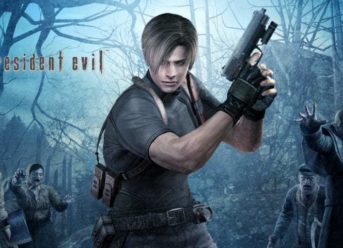
A considerable number of gamers around the world rate Resident Evil 4 as being not only the best of its series but one of the best video games of all times, being considered by many ways ahead its time. Although having a great sense of charm to it, an element is certainly absent from the Nintendo Switch port, and that is motion control.

Although being enthusiastically expected by a large number of players, many of them expecting the Switch version to be the definitive version of the game, unfortunately, it came out a bit disappointing for some.

Resident Evil 4 on Nintendo Switch Lacks A Series Of Important Features

Apparently, on the Switch, there are no differences. There is no gyro and no HD rumble, and not many positive aspects updated. Although it is still 60 fps when trying to aim or move the controller nothing seems to happen, since there were no attempts to factor in the motion control that once made the Wii edition of the game to be so enjoyable.

Although you can access control options in-game, this is not the case for motion control enabling, which is quite surprising considering the special features of the Joy-Con controllers would make it easily replicable. Now Capcom is not really the one to put the blame on since it is obvious that the most facile option was to directly port the already existing HD version, especially when taken into account that most of the gamers will not even notice the fact that motion input is the mission.

However, you cannot disgrace the fact that this is enough reason to conclude that this is not the ‘definitive version’ of the game.

The Community Is Deeply Disappointed

Capcom could eventually patch motion controls later on, but it doesn’t really have to.

The community, however, is truly disappointed about this aspect and believes that “charging almost $30 for a 14-year-old game that lacks features the switch is actually capable of doing” is not the best strategy they could go for.

Exit mobile version